

This Getting Started Guide serves to help new users login into ObjectSecurity’s BinLens™ for the first time. This guide also briefly explains how to analyze your first OT/ICS asset binary files for weaknesses (CWEs), vulnerabilities (CVEs), and unpublished vulnerabilities (Zero-Days).
1. Receiving the first invite link to and navigating to the application.
In order to begin using the application, another user must send you an invitation link.
2. Creating a password.
You will then be prompted to create a password:
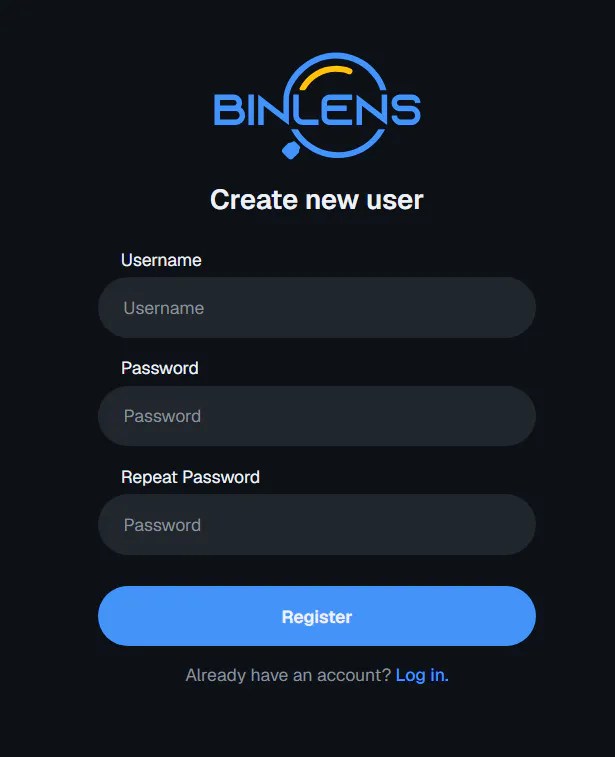
Please choose a secure password, and enter the same password twice to continue.
3. (Optional) Setting up Google Authenticator.
You may choose to set up Google Authenticator by enabling MFA under your Account Settings. Google Authenticator can be downloaded on your mobile device using one of the following links:

Once you have downloaded the Google Authenticator app on your mobile device, add your account by following the instructions listed below the QR code. Once your account has been added to Google Authenticator, you will see a 6-digit code that updates every second or so. Please enter this code now, as well as when prompted on subsequent logins.
4. Starting your first analysis.
To start analyzing your File, please select Choose files in the agent chat box and select your file(s) for analysis:

Then enter a prompt describing the analysis you would like to perform. You may enter a prompt such as:
Use Ghidra to analyze the provided binary as if the source code is unavailable.
Identify:
- Vulnerabilities and unsafe behaviors
- Attacker-controlled data flows
- Dangerous library or system calls
- Hidden, optional, or runtime-loaded dependencies
- Environment variables, configuration values, or external files that influence execution
Pay particular attention to calls such as ‘strcpy’, ‘sprintf’, ‘system’, ‘getenv’, ‘dlopen’, and ‘dlsym’.
For each finding, provide:
- Vulnerability type and likely CWE
- Affected function
- Evidence from the decompiled code
- Exploitation conditions
- Potential impact
- Recommended remediation
5. Viewing your analysis results
After the agent completes it’s analysis you may review the results as well as ask questions to the agent regarding the results

You can return to the results later be selecting them from the list of previously run analysis
